You can use the newsletter feature for multi-channel marketing to send out email, multimedia text messages (MMS / SMS) and push notifications to your patrons.
You can send out emails to the customers that opt-in your mailing list / text list. To use this feature login to your website as admin and go to Control Panel -> Events & Venues -> Mailing List / Text / Push .
Use the Control Panel > Account & Settings > Site Settings > Mailing List and Marketing to configure the newsletter feature and make sure you get proper legal consent from the recipients.
- Messages can be in the form of newsletters, promotional or informational.
- You can send the emails or text messages to all your customers or only the customers who have purchased tickets to a specific event.
- When sending to customers who purchased tickets to a selected event, you can further limit recipients by price level / variation matching code. Enter one or more matching-code fragments separated by commas. The filter matches tickets whose price level or selected variation matching code contains one of those fragments, ignoring case, so VIP can match VIP, KidsVIP, or SeniorVIP.
- You can create templates for emails, text and push notifications that you send out frequently. For example, you can have a template for your weekly newsletter that lists all your upcoming events.
- You can use special tags in the form of [...] in your email templates. These tags will be replaced with the recipient's or event's information. You can get the complete list of valid variables and an example on how to use them on the mailing list page.
- You can send the newsletter right away or schedule it for certain date/time.
- You can use html or text in your emails.
- Always preview your email and send a copy to yourself to make sure everything is as expected before sending out to your customers.
- If you are using html in your email, always send it to yourself first and make sure it looks good in popular email readers like Gmail, Yahoo, Msn, outlook, etc.
- You are not allowed to spam customers. At the bottom of each sent email, there is a link that allows your customer to opt-out (unsubscribe) from your mailing list and not get any more emails from you.
To prevent the recipients from opting-out and to avoid being marked as spammer by email providers, make sure to always send related and useful email and avoid frequent emails.
- Make sure to comply with all the applicable laws when sending out messages. Set the proper, legal consent for collecting emails and phone numbers in Control Panel > Account & Settings > Site Settings
Text (SMS / MMS)
Text marketing has a much higher potential to be viewed and opened by the recipient compared to emails.
However, you should make sure to use it only in compliance with all applicable laws.
Text messages are sent as MMS (multi-media messages) that allows for longer message and attaching a picture. Always test the message to make sure it gets received the way you expect it.
Push Notifications
Push notification pop up in the notification area of mobiles and desktops and when the user clicks / taps on it, it opens the specified link.
Unlike emails and text messages, push notifications are not limited to your registered user list and anybody who visits your website, may subscribe to push notification without signing up or giving away their email or phone number and it is a good opportunity to reach out to more potential clients.
Push notifications cannot be targeted to certain users and cannot be personalized with the recipient's name.
Users can opt out of receiving push notifications from their browser or notification settings and their subscription will automatically expire if they don't visit your website for a long time. As a result, it is important to send regular engaging push notification to make the users to click and visit your site. At that point, we can automatically re-new their subscription so that they will keep receiving the push notifications.
Since the un-subscription happens outside our control, we are not able to determine how many users are going to receive the push notifications.
Reporting (Delivery, Open, Click Rate)
You can report the delivery, open and click rate of your newsletters at Control Panel > Reports > Campaign Stats
View Sent or Scheduled Emails / Deschedule a Newsletter
You can view all previously sent newsletters or emails that are scheduled to be sent from the "Template / Sent History" drop-down menu.
If a newsletter is scheduled but has not been sent yet, you can load the template and click the "Deschedule" button to cancel the scheduled send.
Charges & Quotas
Your plan includes a certain number of free newsletters that you can send to all your patrons per month or per week (based on your plan).
If you exceed your free newsletter quota, the system will clearly show you the applicable charge before you schedule the email. The charge is calculated based on the number of recipients.
Your plan also includes a quota for emails sent to event attendees per event, such as reminder emails or thank-you emails. If you exceed this quota, the system will similarly show you the applicable fee before sending.
Notes:
-
The included quotas are designed to be more than sufficient for most normal marketing and communication needs.
-
The estimated fee shown at the time of scheduling is based on the number of recipients at that moment. The final charge is calculated based on the actual number of recipients at the time the email is sent.
-
For security reasons and to prevent abuse by spammers, you must complete your account setup and have a valid credit card or payment method on file before using the newsletter system.
Creating an Email Template
An email template is the layout and content (usually HTML) that will be used as the body of your newsletter or email message.
Email templates are typically written in HTML, but they must be compatible with email readers (Gmail, Outlook, Apple Mail, etc.).
For best compatibility and security, email templates must not include scripts (JavaScript), embedded forms, or other active content. Most email clients block these anyway.
Videos should not be embedded directly in the email. Instead, use an image thumbnail and link it to the actual video page (for example, YouTube or your website).
You can create your email template directly using the built-in Rich Text Editor.
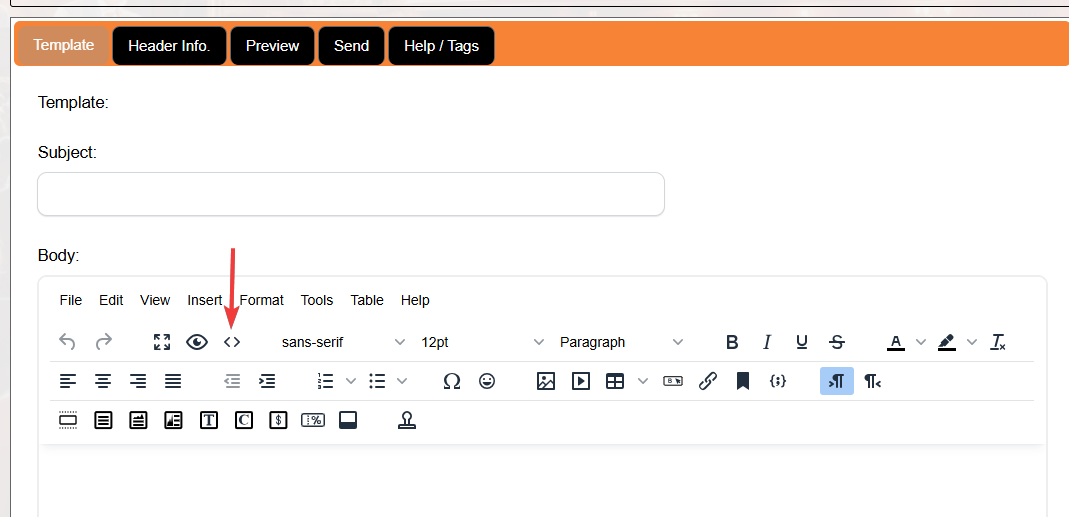
Alternatively, you can design the email using any external email/template builder or generate one using AI. Create a template using your favorite email or template designer, copy the template as HTML, then in Ticketor's Rich Text Editor click the "< >" (Source) icon in the toolbar to switch to "Source mode", paste your HTML there and save.
Using Stripo to Create Email Templates
Ticketor has partnered with Stripo, a professional email template builder that makes it easy to design beautiful, responsive email templates.
Go to Stripo.email and either choose one of their pre-built templates or create a new template from scratch.
You can use Ticketor template tags inside your Stripo template, and they will be replaced with actual values when the email is sent.
Once your template is ready, you can transfer it to Ticketor in one of the following ways:
Option 1: Export as HTML
In Stripo, click Export and select File > HTML. Then go to Ticketor’s template editor, click the "<>" (Source) icon in the toolbar, paste the HTML, and save the template.
Option 2: Export directly to Ticketor
In Stripo, click Export, select Email Provider, and choose Ticketor.
In the pop-up window, enter any name for the connection. The username should be your Company ID followed by the email address of a user who has API permission, and the password should be the password of that same user.
To grant API permission to a user, please follow the instructions at: Control Panel > Help & Support > Developers & API
Check out the article below to learn about all creative methods Ticketor offer for marketing and advertising your events:
Everything about Marketing, SEO and Advertising Your Events
